
Change an invoice's payment object
Every invoice records which Salesforce record it was raised against. That is its payment object: an Opportunity, an Order, or whichever custom object your organisation bills from. ChargeOn sets it when the invoice is created, and the Payment Object field on the invoice shows it as a clickable link.
Sometimes the invoice ends up pointing at the wrong record. An Opportunity gets split, a project is re-parented, work is moved to a different contract. You can correct that with a Salesforce Flow, because the two fields the link is built from are ordinary editable fields.
How the link is put together
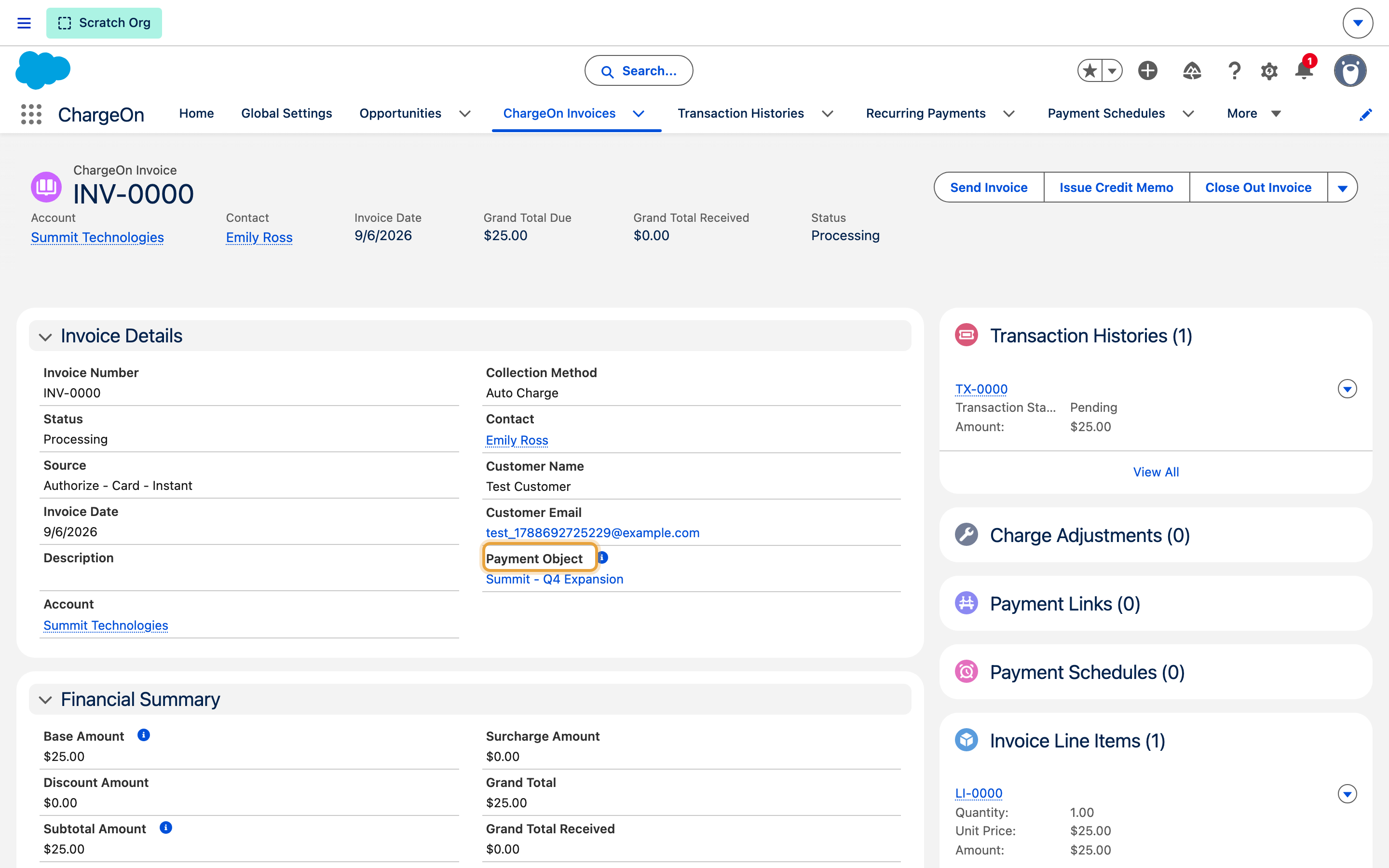
The Payment Object field is not stored. It is a formula that builds a link out of the two fields beside it:
| Field | What it holds | Editable |
|---|---|---|
| Payment Object Id | The record ID of the source record | Yes |
| Payment Object Name | The text shown as the link's label | Yes |
| Payment Object | The clickable link, built from the two above | No, it is calculated |
Anything that can write a text field can change where an invoice points. A Flow is the usual choice, because it lets you apply your own rules about who may do it and when.
Always set both fields
Set Payment Object Id on its own and the link points at the new record while still showing the old record's name. Set Payment Object Name on its own and the label changes while the link still opens the old record. Either way the invoice looks wrong to whoever reads it next. Write both in the same Flow.
Before you start
- You need permission to build Flows in Salesforce (Manage Flow), and edit access to the ChargeOn Invoice object.
- Decide what should trigger the change. A screen Flow launched from a button gives a person the final say; a record-triggered Flow applies a rule automatically.
- Have the API name of the field on the invoice that identifies the new source record, if the Flow is going to look it up rather than being handed it.
Steps
- Go to Setup → Process Automation → Flows and click New Flow.
- Choose the Flow type:
- Screen Flow if a person picks the new record. Add it to the Invoice page as an action or a button.
- Record-Triggered Flow on the ChargeOn Invoice object if the change should happen automatically. Set it to run after the record is saved.
- Get the new source record. In a screen Flow, add a Lookup component so the user picks it. In a record-triggered Flow, use a Get Records element to find it.
- Add an Update Records element pointing at the invoice.
-
Set both fields on it:
- Payment Object Id to the ID of the new source record.
- Payment Object Name to the name you want shown, usually that record's Name field.
-
Save the Flow, then Activate it.
- Test on a single invoice before you let it near live data.
What you should see
Open the invoice. The Payment Object link now shows the new record's name, and clicking it opens that record.
What does not change
Re-pointing an invoice changes the invoice from that moment on. It does not rewrite history.
- Transactions, credit memos and payment links that were already created against the old value keep their own stored copy of it. They are not updated, and they should not be: they record what actually happened at the time.
- Reports built on the old value still show the old value for those records.
- Anything created against the invoice after the change picks up the new value.
Credit memo eligibility follows this field
ChargeOn works out whether credit memos are available on an invoice from its payment object. Point an invoice at an object that does not have Credit Memo enabled in Global Settings → Object and Rules and credit memos stop working on that invoice, including credit that was already issued against it.
Before you activate a Flow that changes this field in bulk, confirm the destination object is mapped and has Credit Memo enabled. See issue a credit memo.
If it does not work
| Symptom | Likely cause | What to do |
|---|---|---|
| The link shows the new name but opens the old record | Only Payment Object Name was set | Add Payment Object Id to the same Update Records element |
| The link is plain text with no destination | Payment Object Id is blank or is not a valid 18-character record ID | Check the Flow is assigning the record's Id, not its Name |
| The Flow fails on save with a field-access error | The running user cannot edit the ChargeOn Invoice fields | Grant edit access, or set the Flow to run in system context |
| Issue Credit Memo disappears from the invoice after the change | The new payment object is not mapped, or does not have Credit Memo enabled | Check the mapping under Global Settings → Object and Rules |
| Nothing happens on a record-triggered Flow | It is set to run before save, or it is not activated | Set it to run after the record is saved, then activate it |
Related reading
- Map fields to your objects covers choosing which objects ChargeOn bills from in the first place.
- Create an invoice covers where the payment object comes from when an invoice is first raised.