
Show payments on your own records
Your team works from the Opportunity, the Order or the custom object you bill from. Put ChargeOn's records right there, so everything about a deal sits on one page: what was invoiced, what was charged, and what is still billing on a schedule.
It is the same 3 steps for each one. Add a field linking the ChargeOn record to yours, have it filled in, then put the related list on your page.
Before you start
- You need permission to add fields and edit page layouts in Setup, and to build Flows (Manage Flow).
- Have your payment object's ID prefix to hand. It is the first 3 characters of any of its record
IDs, which you can read from the record's web address. Opportunity is
006.
Show invoices
1. Add the link
- Go to Setup → Object Manager → ChargeOn Invoice → Fields & Relationships.
- Click New.
- Choose Lookup Relationship.
- Pick your payment object as the related object.
- Name the field after your object, for example Opportunity.
- Save it.
2. Have ChargeOn fill it in
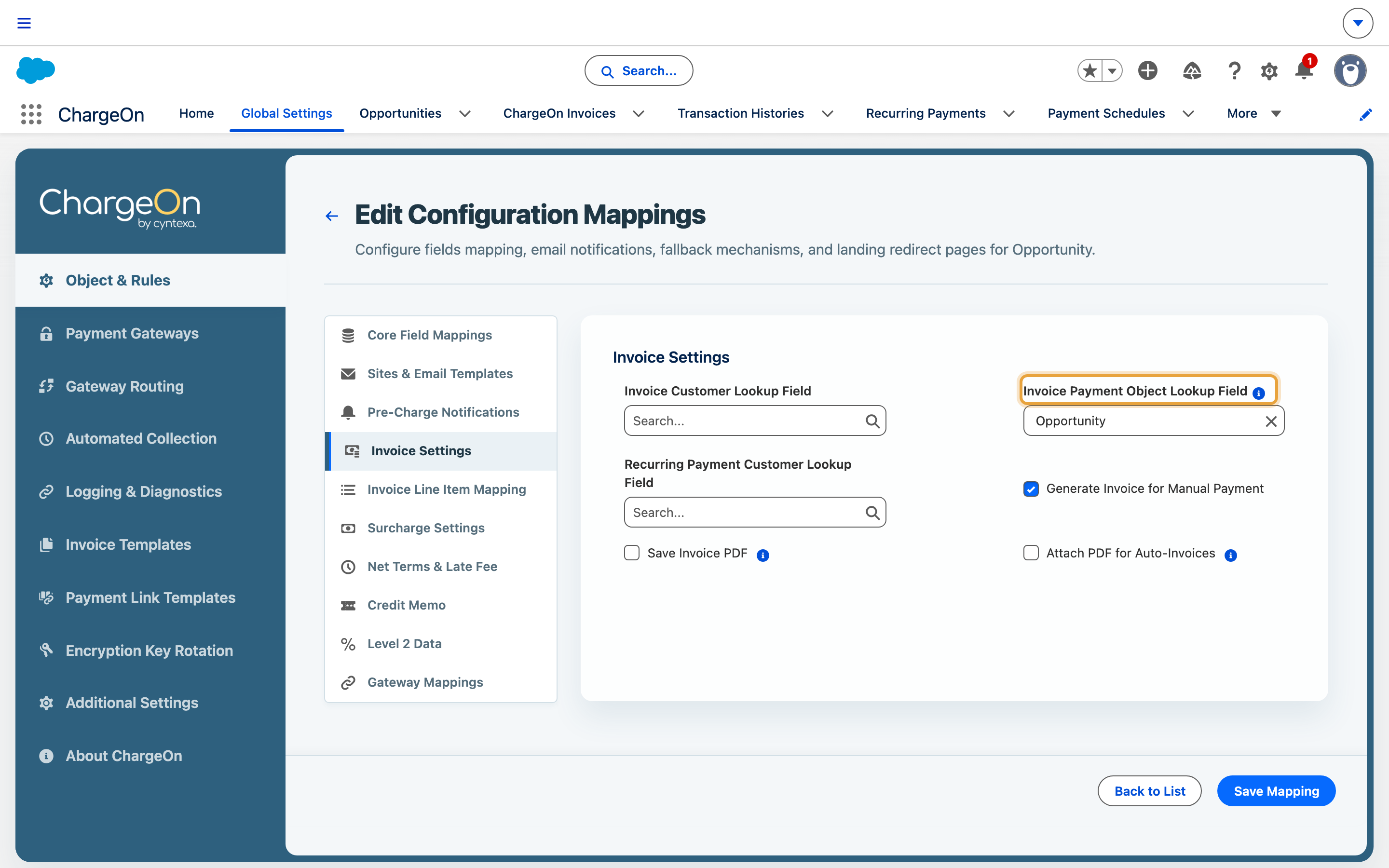
- Open Global Settings → Object & Rules.
- Edit the mapping for your payment object.
- In Invoice Payment Object Lookup Field, select the field you just created.
- Click Save Mapping.
ChargeOn fills that field on each new invoice it creates for this payment object.
3. Add the related list
- Go to Setup → Object Manager → your payment object → Page Layouts.
- Open the layout your team uses.
- From the Related Lists palette, drag ChargeOn Invoices onto the layout.
- Click the spanner on the list to choose your columns.
- Click Save.
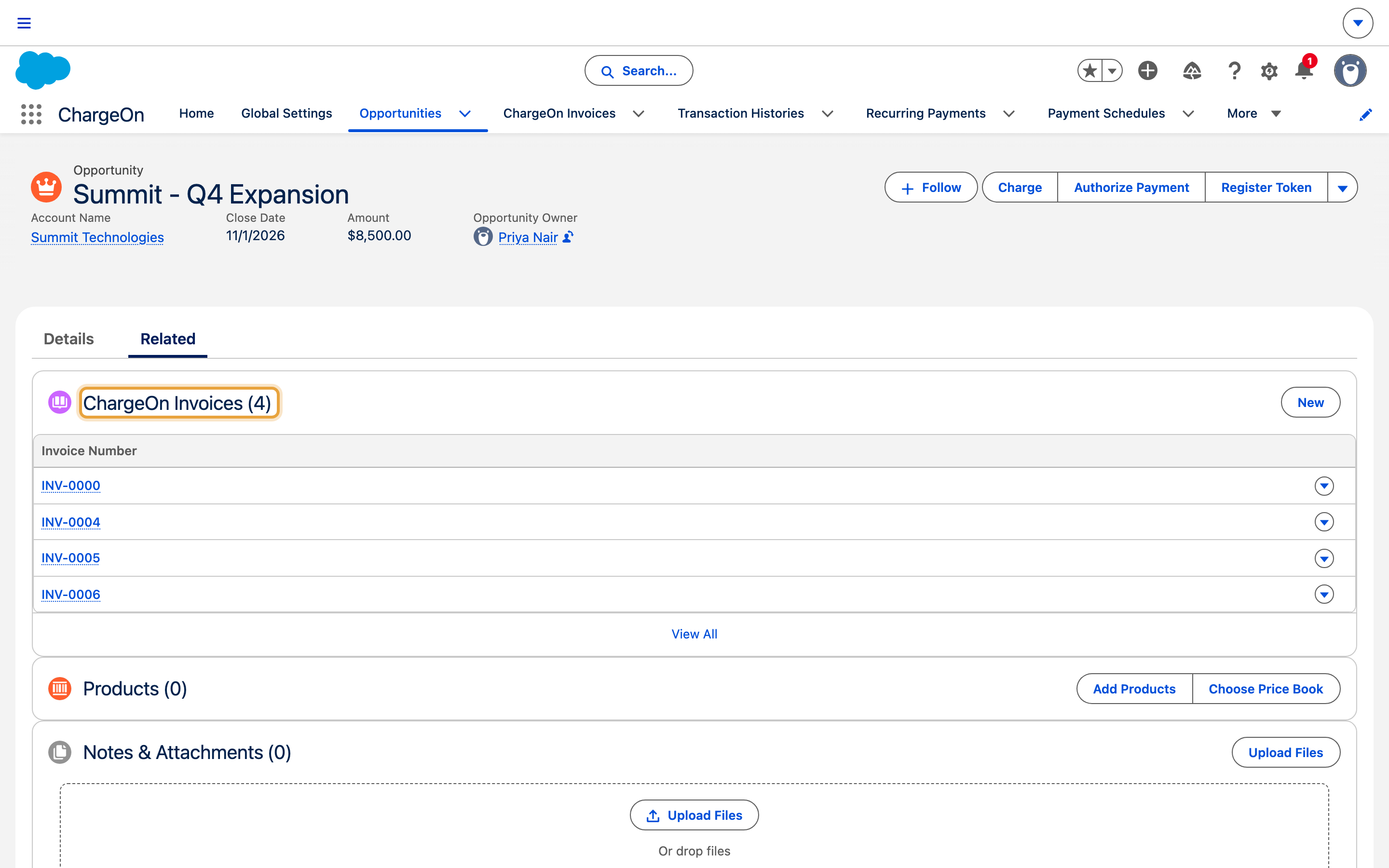
Open one of your records and click Related. Its invoices are there. If the tab is empty, open the record, click the gear icon, choose Edit Page, and put the standard Related Lists component on the Related tab.
Show transactions
The same 3 steps, with a Flow doing the filling in.
1. Add the link
- Go to Setup → Object Manager → Transaction History → Fields & Relationships.
- Click New.
- Choose Lookup Relationship.
- Pick your payment object, and save.
2. Fill it in with a Flow
- Go to Setup → Flows and click New Flow.
- Choose Record-Triggered Flow, and select Transaction History.
- Set it to run when a record is created or updated, optimised for Fast Field Updates.
- Under Entry Conditions, set Payment Object Id starts with your object's ID prefix.
- Add an Assignment that sets your new field to Payment Object Id.
- Save the Flow.
- Click Activate.
The entry condition keeps the Flow to records raised against this object, so each of your payment objects can have its own field and its own Flow.
3. Add the related list
- Go to Setup → Object Manager → your payment object → Page Layouts.
- Open your layout.
- Drag Transaction Histories in from the Related Lists palette.
- Choose your columns, and save.
Show installment plans and subscriptions
The same again on the Recurring Payment object.
- Go to Setup → Object Manager → Recurring Payment → Fields & Relationships, and add a Lookup Relationship to your payment object.
- Build a Record-Triggered Flow on Recurring Payment, exactly as in the transaction steps above: Fast Field Updates, the same Payment Object Id starts with entry condition, and an Assignment to your new field.
- On your payment object's page layout, drag in the Recurring Payments related list and choose your columns.
What you should see
Take a payment against one of your records, then open it and click Related. The invoice, the transaction and any billing schedule you set up are on the page, and each one opens the full ChargeOn record.
If it does not work
| Symptom | Likely cause | What to do |
|---|---|---|
| The related list is not on the Related tab | The Lightning record page has no Related Lists component | Open the record, click the gear icon, choose Edit Page, and add it to the Related tab |
| The list is there but empty | The records were created before you set this up | Take a fresh payment against the record and check again |
| Your field is not offered in Invoice Payment Object Lookup Field | The mapping screen loaded before the field existed | Reopen Global Settings → Object & Rules and edit the mapping again |
| Transactions are not linked, invoices are | The Flow is inactive, or its entry condition does not match this object's ID prefix | Open the Flow and check both |
Related reading
- Update your own record when an invoice is paid writes payment results back into your own fields.
- Map fields to your objects covers choosing which object ChargeOn bills from.