
Brand your invoices and payment pages
Two things your customers see carry your branding rather than ChargeOn's: the invoice PDF, and the page they land on from a payment link. Both are built in the same place, with a live preview beside the settings, so you can see each change as you make it.
This is separate from the notification emails, which are covered in customise notification emails.
Before you start
- You need access to Global Settings in the ChargeOn app.
- Have your logo to hand as an image file, and your brand colour as a hex value.
Design the invoice
- Open the ChargeOn app and go to Global Settings → Invoice Templates.
-
Click Create New Template, or open an existing one to change it.
-
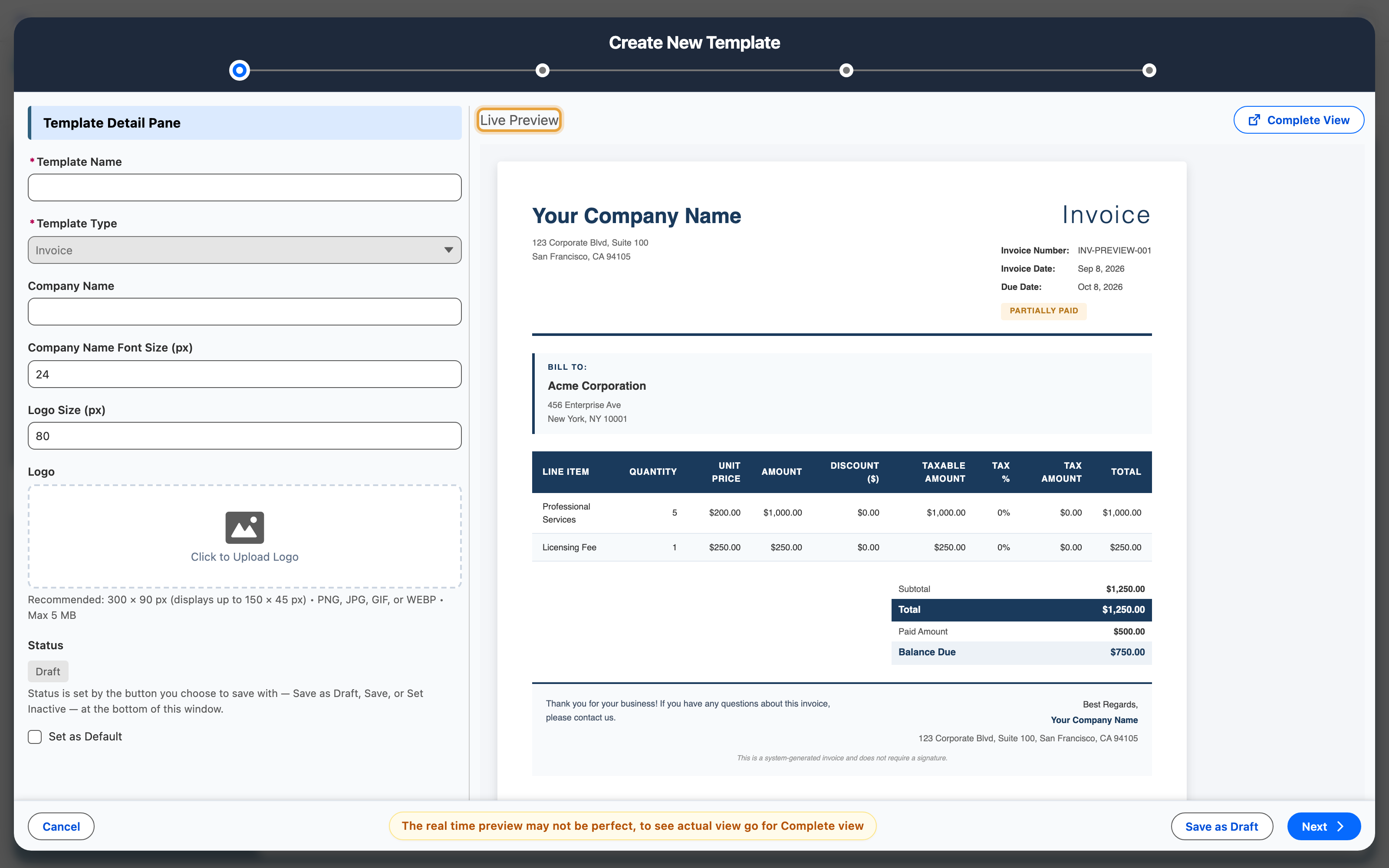
Set your Company Name, upload your Logo, and pick a Brand Color. The preview updates as you type.
- Choose which columns the line items show under Invoice Columns, and which fields appear under Invoice Fields to Show.
-
Decide what else appears: Show Billing Address, Show Company Address, Show Invoice Details, and Show QR Code on Invoice for customers who would rather scan than click.
-
Write anything you want at the foot of every invoice in Bottom Description — payment instructions, a VAT number, a thank-you.
- Click Save.
What you should see: the template listed, with the preview matching your branding.
Design the payment page
- Go to Global Settings → Payment Link Templates.
-
Click Create New Template, or open an existing one.
-
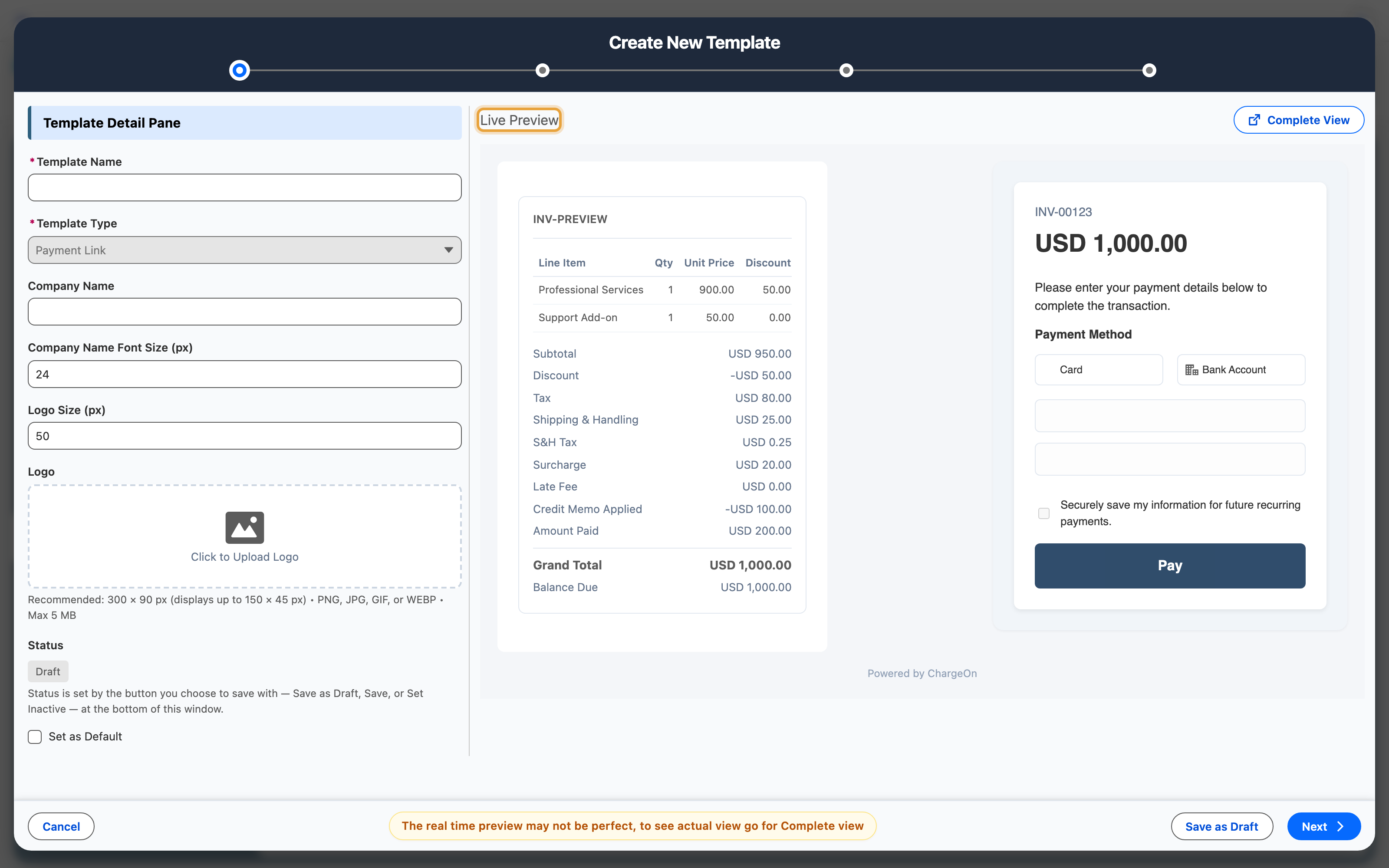
Set the same branding: company name, logo, brand colour, fonts.
- Under Available Payment Methods, choose what the customer can pay with.
- Set Link Expiration Days to how long a link should stay usable.
- Put your terms in Terms and Conditions. They appear on the page the customer pays on.
- Click Save.
What you should see: the template listed, and the preview showing the page your customer will open.
Make a template the one that gets used
A template marked Default is the one ChargeOn uses for every new invoice or payment link.
- In either template list, open the template you want.
- Tick Set as Default.
- Click Save.
The list shows a Default badge against it.
What you should see: your next invoice PDF and your next payment link carrying your branding.
Try it before you rely on it
Raise one invoice and generate one payment link, then look at both as your customer would. The preview is accurate, but a real one costs nothing to check.
Related
- Customise notification emails — the wording of the emails that carry these
- Create an invoice
- Send a payment link